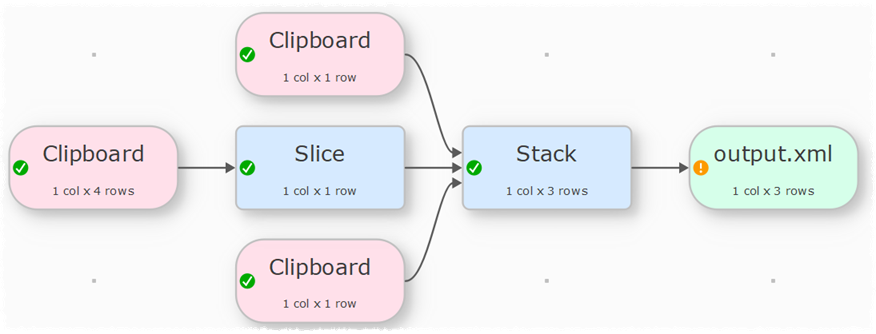
Is there a way to join multiple DataTransforms, or to import/export them, or otherwise copy and reuse them (for example, via copy/paste or a similar mechanism)?
I have been working with several large datasets and have created fairly complex conversions for each. Now that I am becoming more comfortable with Easy Data Transform—and starting to fully trust it, as it is a fantastic tool—I would like to consolidate these workflows into a single transformation and output the results as multiple sheets within one Excel file.
Is this possible or do I need to start from Scratch?
The data I am working with comes from a webpage. In order to import it, I currently need to make minor manual changes to the HTML file and save it as XML. Specifically, I need to remove the existing header, replace it with , and add at the end of the file.
Is it possible for Easy Data Transform to perform these steps automatically during import so that the files can be handled directly, or do these changes always need to be done manually beforehand?
Is any of this possible within Easy Data Transform?
Thank you in advance for any guidance or suggestions.
re. 1 - Currently there is now way I know to copy transformation from on transform file to another one. Andy (Admin) state sometimes such functionality (and/or mark a subset of transformation in a “Function block”) is on the wish list.
Nevertheless you can with from multiple transformation files into different Excel tabs. Just set in each transform file a different Excel Tab name:
By the way if it gets complex keep it when possible in separate transform files, Maintenance of transform files with 200+ transformation are a nightmare. I had some with 300 to 600 transformations. If you don’t comment each transformation and use notes a lot you will be lost.
By the way, when you have stable transformation fiel generating output you can combine them in a command line file and run this and they are executed without opening the GUI. See help for it, e.g. Easy Data Transform
re. 2 - I think it is possible, but to give you some suggestions can you just post an example of the source and the target you intend to reach.
You can right-click on a sequence of items and Duplicate them inside the same .transform. However there currently isn’t a way to copy and paste items from one .transform to another. It is on the wishlist.
You might find it is more manageable to have several smaller .transform files than one huge .transform file.
I would try to avoid manual edits as much as possible, as it is time consuming and error prone.
Try reading the file as a plain text file, modify it (e.g. remove the header row) and output it as a .xml file. Then input the .xml file and do any further processing. You can do this in one .transform file or separate .transform files.
Here is a professional and clearly structured rewrite, suitable for a forum reply while maintaining a collaborative tone:
Hi, and thank you for your response.
I am aware of the option to write multiple sheets to an Excel file. However, my goal is to perform everything within a single transform to ensure that all data remains synchronized and up to date.
My current workflow is as follows: I copy the search results from the webpage and paste them as HTML into BBEdit. When I do this, the first three lines of the file are:
For Easy Data Transform to accept the file as XML, I need to replace the <head> section with <root>, add </root> at the end of the document, and then save the file as .xml.
Is there a way for Easy Data Transform to handle this preprocessing automatically during import, or is this manual step always required?
So box grouping is coming soon?
I would also think about being able to import and export groups to a DataTransform, that way you can make some templates you can use over and over again.
I would recommend to follow @Admin recommendation and execute the pre-process part first and then your other transformation in an own transform file.
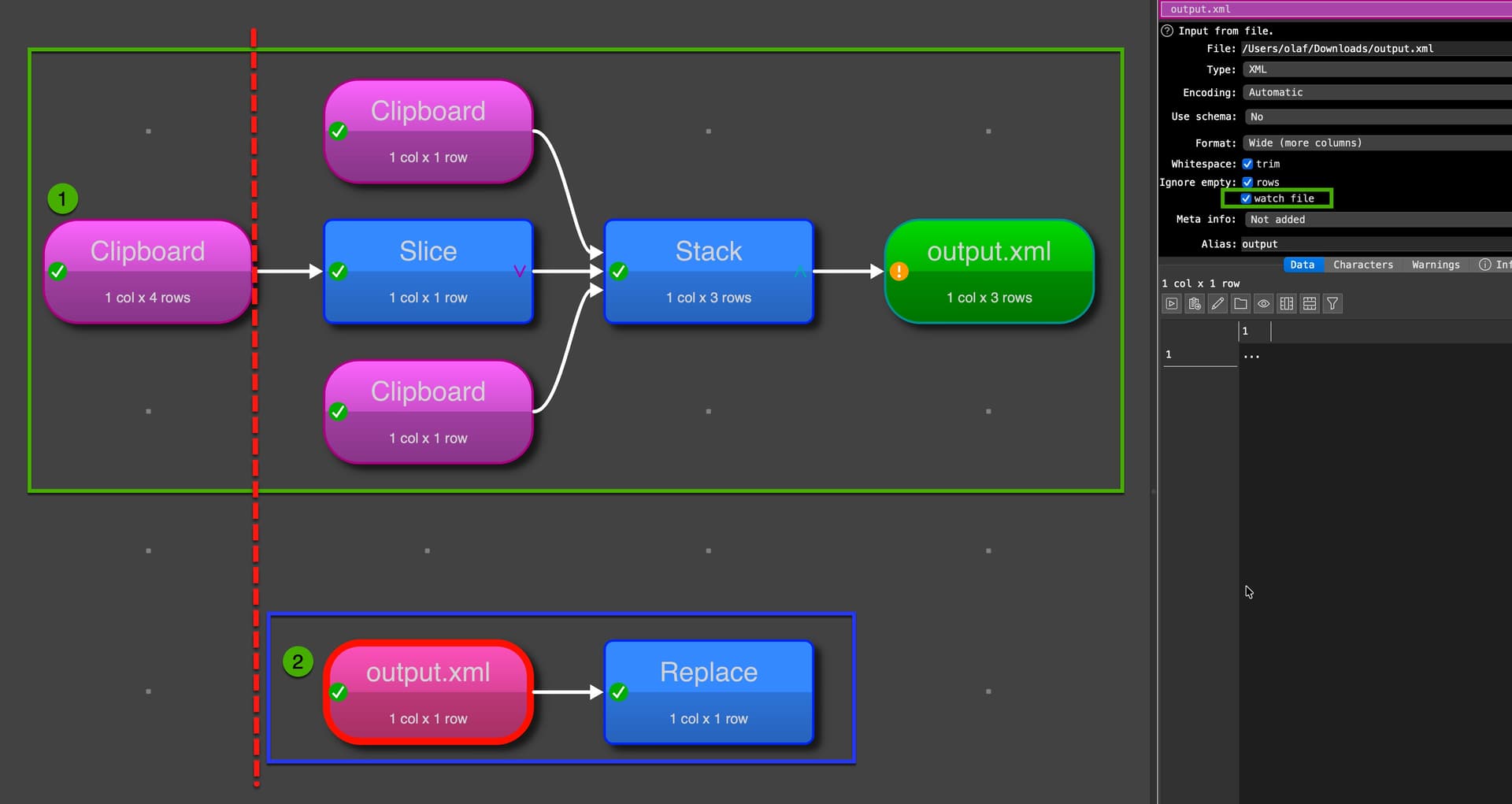
For nasty implementations it would be possible to combine it in one transform file, but you need a temporary file anyhow. You need to know the EDT logic. It starts with the most left transformation and complete the branch with this transformation if possible. So it would be to do the pre-process first (1) and read in the temporary file in a second step (2) as long as it is more to the right from prep part, but then you should mark with reading of the temporary file the “watch file” option.
But honestly, I think this is bad behavior and could have some side effect. I just mention it to show options in EDT.
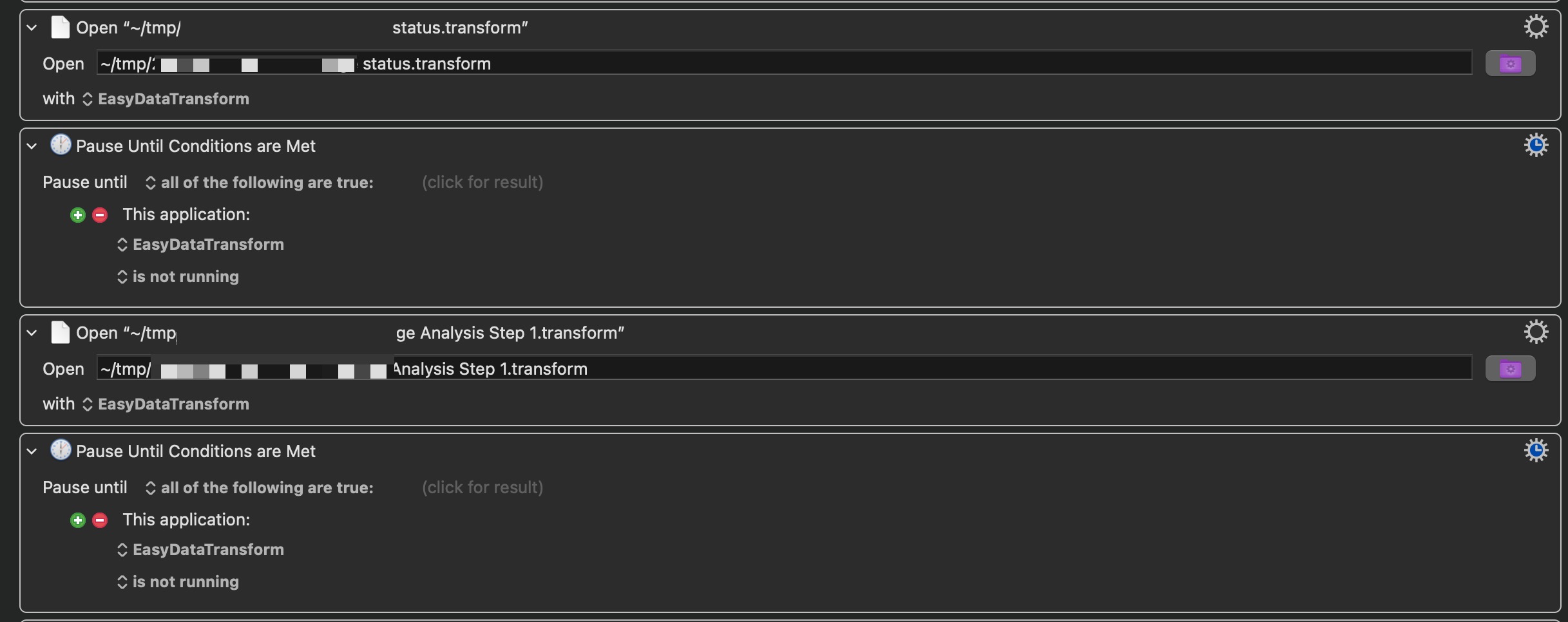
I strongly recommend to keep the EDT transformation files as simple and easy as possible and automate execution sequences with tools (command line scripts) or on Mac you can use, e.g. Keyboardmaestro or Shortcuts.