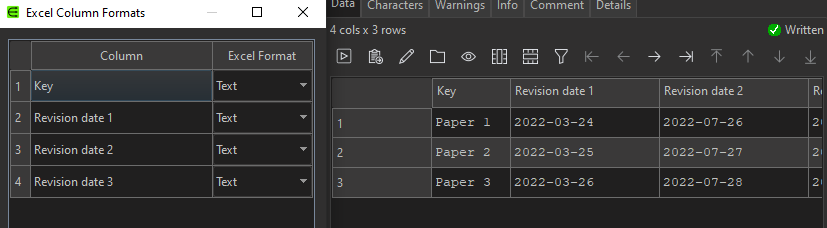
I have automated a data process, so that an input file will be delivered for EDT usage. I automatically output an excel file that needs all columns as text with a .bat script. My problem is that the input data delivered will have more and more columns, but those new columns will not be configured as text in EDT, but as standard so that the format gets lost in my automation export.
Is there a possibility to set the format for all columns as text in the script or is it possible through EDT?
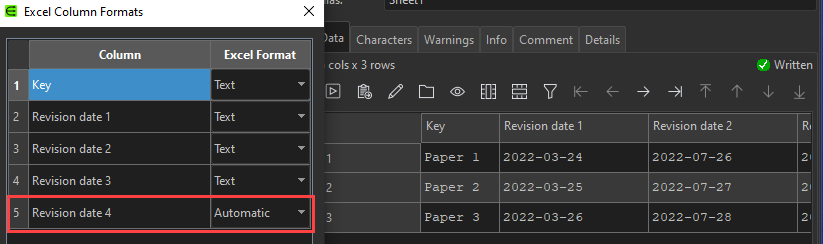
But a different input might result in an output with 5 columns? In that case the 5th column will have an automatic format (not text).
So you need to make sure your .transform output at least as many columns as can be generated by any input. E.g. if some inputs might generate 10 columns of output, then the .transform you use for command line or batch processing must handle 10 columns (and set them all to text).
@Olaf I am currently using the Manual Format. My problem lies in additional columns after the 4th being set to Automatic.
@Admin that is correct, to summarize my initial input has 4 columns and they are initially set to text. The next time my input gets updated it will have 5 columns. The 5th column will be set to Automatic. The solution I want is to have my 5th column in text automatically as well since I want to automate the EDT process, so that I don’t need to manually configure the output.
To basically explain my process, my initial input looks like this:
The updated input:
Revision date 4 needs to be set as text, so that the result will show as a date formatted to text and not a number. (I know it is not really necessary as I can just change the format manually in excel, but I really want to automate my processes)
As per my comment above, you need to insure the the input used the initial transform has at least as many columns as the largest possible input. All should then be well.
WOW! I just tested your solution and it works! I misunderstood your answer at first. So in summary, I need to create the largest possible initial input, use and save the transform and then use it as the automation key point. Any smaller input will not change the output configuration.
Yes. Perhaps in version 2 we can be a little cleverer about this. For example have a type for ‘extra columns’. Also allow you to raise and error and stop if the input doesn’t have the expected columns.