I have 60+ files that all need the same new row adding to the bottom. Is there an easy way to do this? I don’t seem to be able to figure it out.
The files have 5 columns - I have used the Fill option to copy a few of the values, but 2 of the fields need new values adding. It’s the same values that need adding for all 60+ files, so I was hoping I could add a fixed variable somewhere and get each file to read from the one location (or something similar).
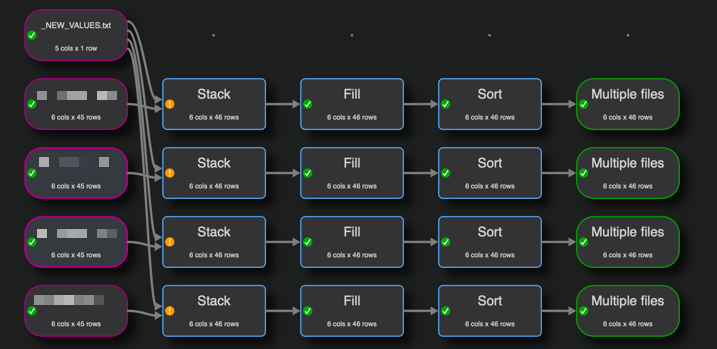
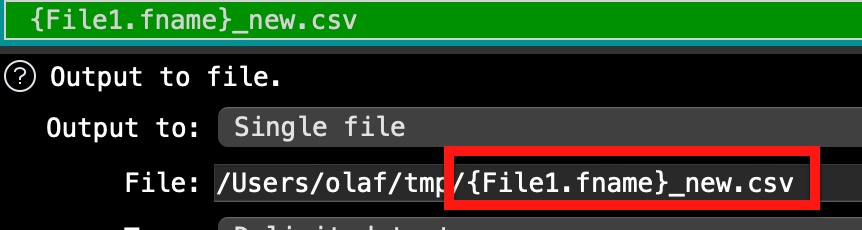
I have the new standard values for the 2 columns in the NEW_VALUES file, so I am stacking the original file with the new values. I’m then filling the standard values down and saving them out to the original file name using the meta info.
It is working, but I wondered if there was any way not to have to add the branch to each of the 60 files? I tried to stack the files first, but then I couldn’t work out how to add the new row to each of the files.
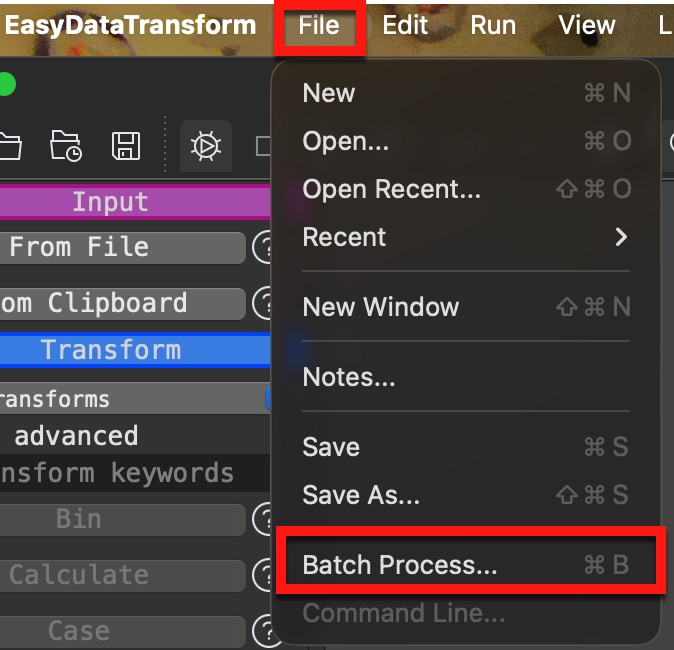
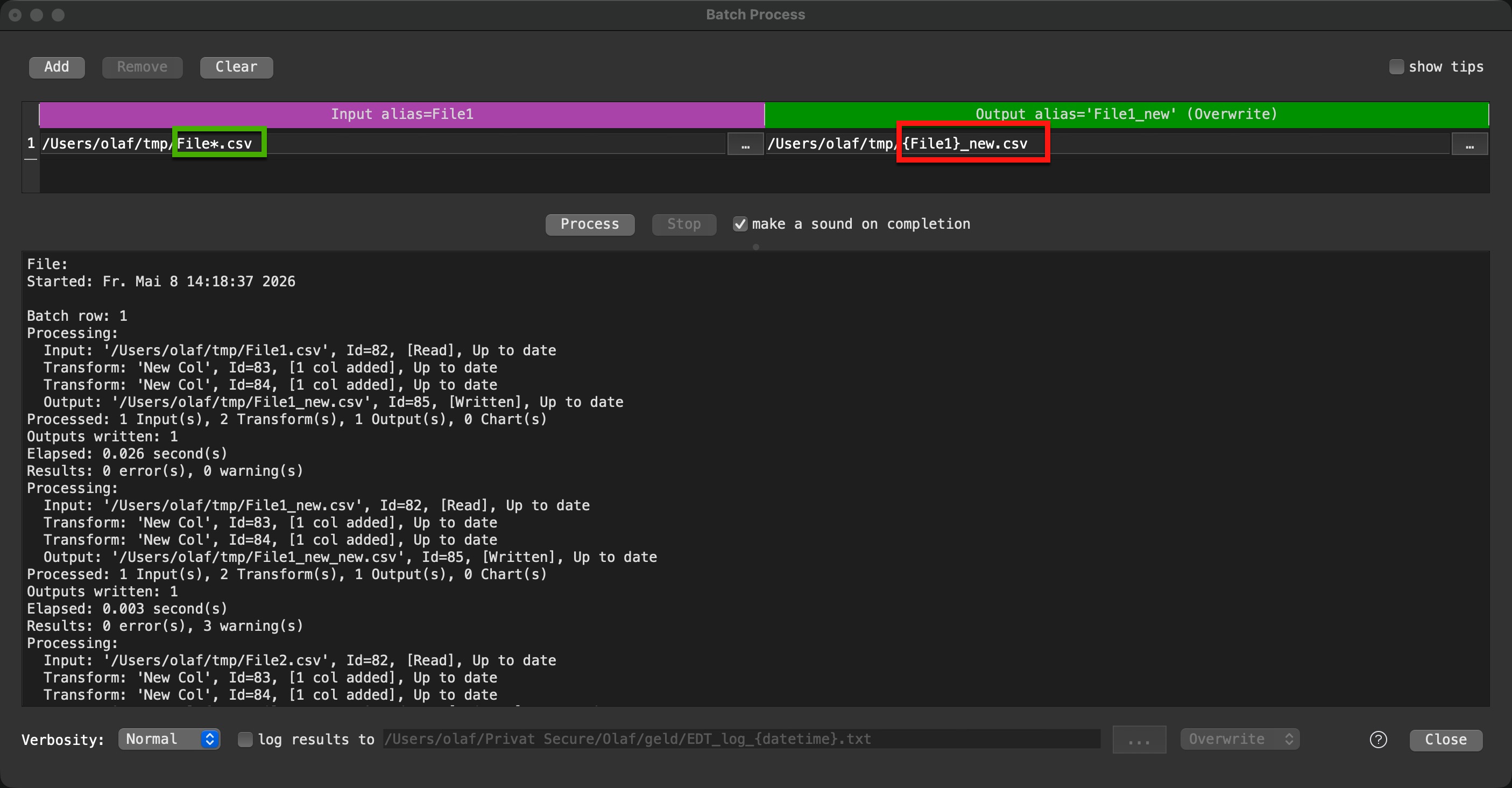
It is new rows rather than columns that I need. However, I got it working for 1 file as per my initial design, and then processed it in batch using *.txt.
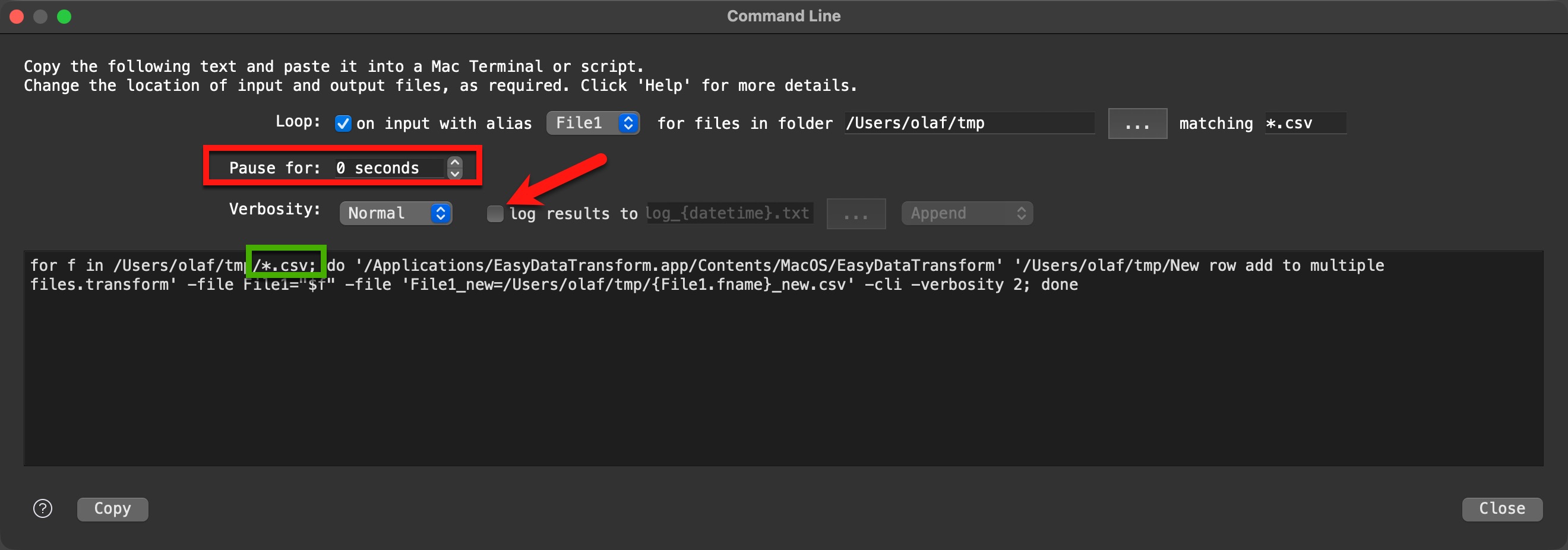
sorry, didn’t read it carefully, with rows and columns. But the process should be the same. If you need this more often you can even excute it in a command line shell script without starting EDT manually.
You can adapt the filename pattern with the *. I switched off the Pause to get it done faster, otherwise it will take more time. @Admin, is there any risk to set Pause to 0?
For command line mode I strongly recommend to enable the login output, so that you are able to check results in case of not expected behavior. And I would remove the datetime expression for the log file name using append mode for log file. Then you get one file with all executions. If the datetime is in the log file you will get for each input file a single log file.
No. It is just to stop the output of different calls getting scrambled up together (interleaved). This seems to be an issue on Windows, not sure about Mac.
I used command line scripts intensively 2 years ago (but this was EDT V1) and did process mors than 200 files daily in loop (pause was not used). I never had any issue with the output on Mac.